
Upload files with postman
Provided you use ahead also for files to be shown to users in their personal section, here you will learn how to do a file upload for a user with postman. This guide assumes that you already had a look at how to get an api-key and use postman to upload a profile update.
Choose the correct content-type
Section titled “Choose the correct content-type”File uploads need to happen with the Content-Type set to multipart/form-data.
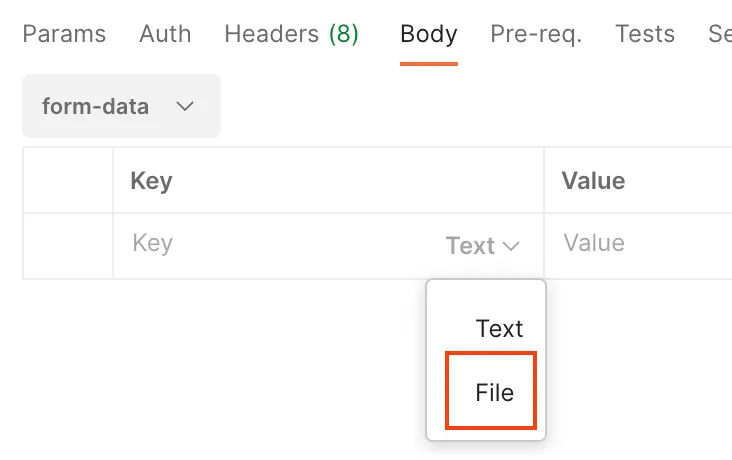
This is most easily done by setting up the body tab correctly. This will automatically set the correct
Content-Type under the Headers-Tab.
Choose a file
Section titled “Choose a file”Now you can choose a file to upload.
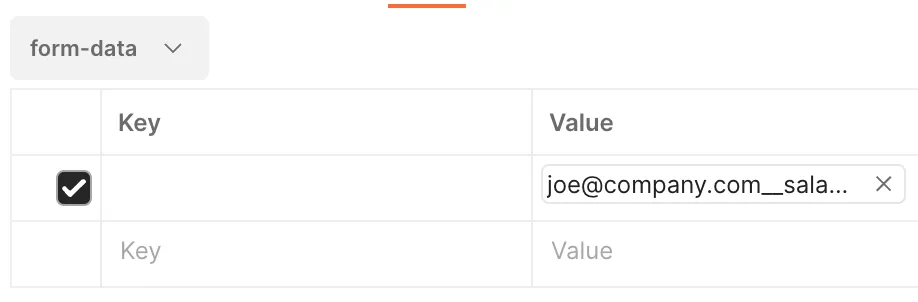
You could add additional files to repeating the file selection step in the next row.
Pressing “Send” starts the request and if all goes well, the response status code should be a merry 200.
Verifying the upload
Section titled “Verifying the upload”Such a request will also show up in the import logs as a file upload:
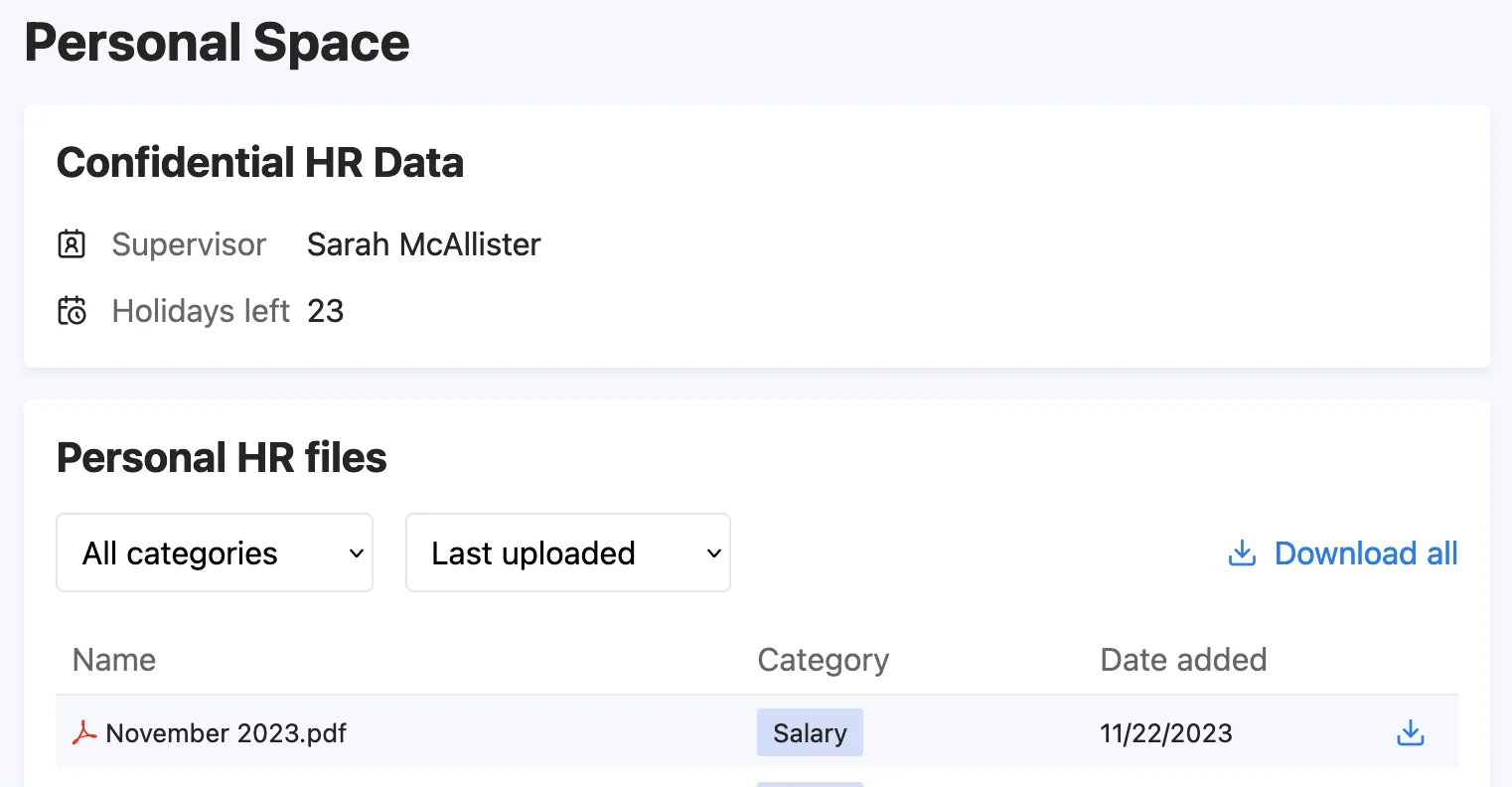
2023-11-22T16:20:09 - RequestId: 1bed586b-ed0e-4780-ad06-e9f831ebd3afSuccess - FileUploaded - Uploaded file 'November 2023.pdf' for 'joe@company.com'And of course, our test subject joe should now see the new file under their personal space.